

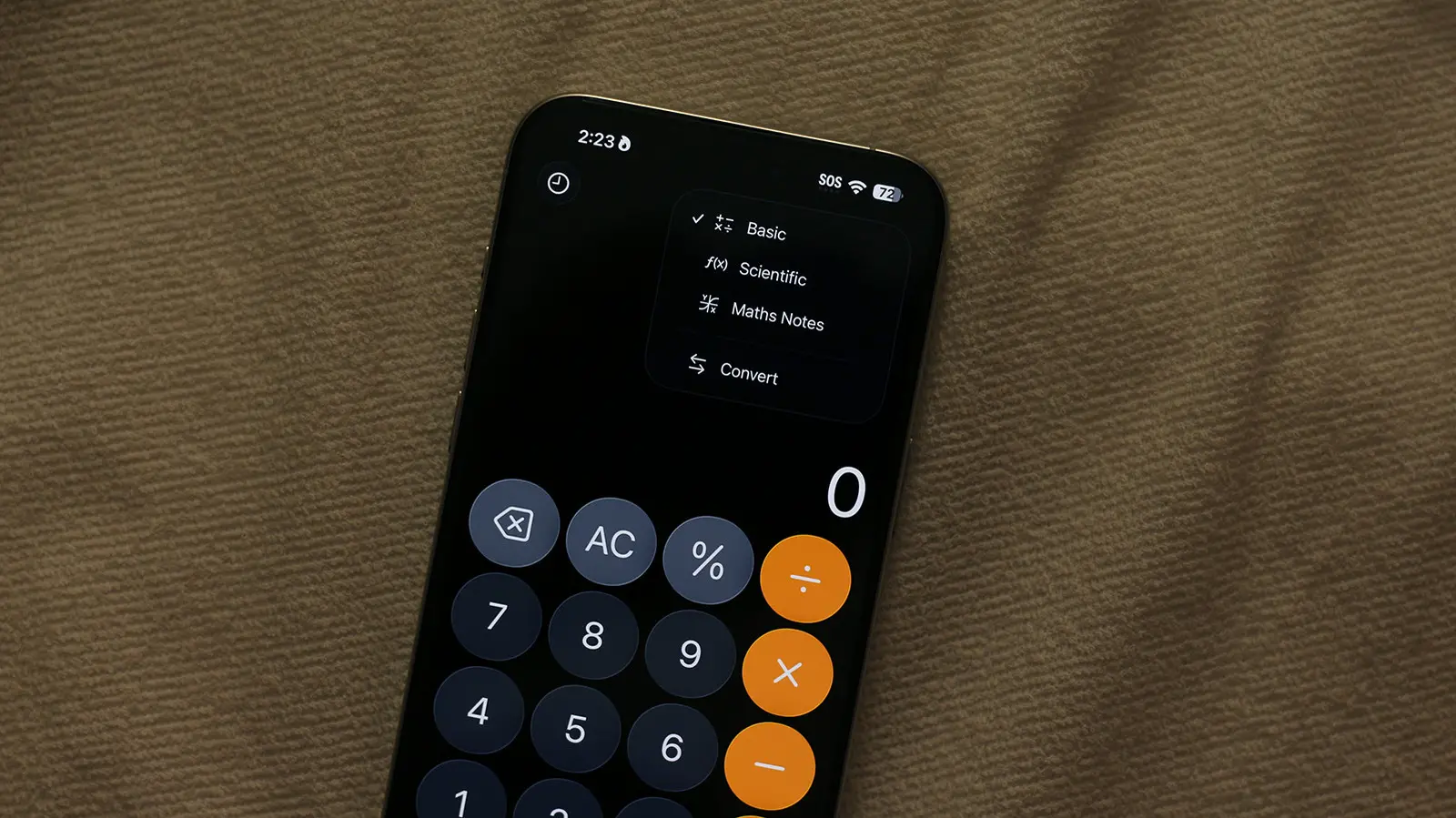
Without the App Store on iOS, we wouldn't be able to play exciting games or get great utility out of purpose-built apps. If there's anything you want your phone to do, it's likely a third-party app exists to do it. This is not to say that the iPhone's built-in apps aren't good — in fact, there's surprisingly a lot you can do with them. The calculator app, for instance, has a minimal user interface that places all the numbers and operators exactly where you'd expect. Previous calculations are saved in the history, and the app can also convert units or currency. You can switch to a scientific calculator, too.
But what many users don't realize is that this seemingly basic tool has evolved into a sophisticated mathematics workstation, especially with the introduction of Math Notes in iOS 18. This feature, first unveiled in 2024, transforms the calculator from a simple arithmetic solver into a dynamic environment where you can write equations, assign variables, and even create graphs — all in a natural, notebook-like format. Whether you're a student tackling algebra, a professional dealing with financial modeling, or just someone who wants to quickly convert temperatures, the iPhone calculator has you covered.
The journey of the iPhone calculator is actually quite interesting. When the original iPhone launched in 2007, the calculator was extremely basic — it only performed addition, subtraction, multiplication, and division, and it lacked a backspace button. Over the years, Apple slowly added features: portrait orientation kept it simple, while landscape orientation revealed a full scientific calculator with trigonometric and logarithmic functions. The addition of a history tape came with iOS 6, and unit conversion was introduced in iOS 10. But the biggest leap was Math Notes, which brought together handwriting recognition, dynamic solving, and graphing capabilities.
To access Math Notes, you have two options. First, open the Calculator app and tap the tiny calculator icon in the upper-right corner. A menu will appear, allowing you to switch between Basic, Scientific, and Math Notes modes. Alternatively, you can create a Math Note directly within the Notes app by tapping the new note button and selecting "Math Note" from the options. Once inside a Math Note, you can type equations using the keyboard or switch to handwriting mode by tapping the pen icon in the toolbar. This handwriting mode uses machine learning to recognize your writing, and it's surprisingly accurate even with messy handwriting.
The real magic happens the moment you include an equal sign. Math Notes instantly solves the expression and displays the result in a font that mirrors your handwriting — a nice touch that makes the experience feel seamless and personal. For example, if you write "3x + 5 = 20", the app will solve for x and show "x = 5". You can even solve systems of equations by writing multiple lines. If you type "y = 2x + 1" on one line and "y = -x + 4" on another, then write "solve", Math Notes will show the intersection point. This capability makes it a powerful tool for visual learners and anyone who needs to check their work quickly.
One of the most practical features is the ability to mix units and currencies. Suppose you're planning a trip and want to add expenses from different countries. You can simply write "130 USD + 140 AUD =" and Math Notes will convert the Australian dollars to US dollars using the latest exchange rates and give you the total. Similarly, you can add lengths: "5 meters + 2 feet" will automatically convert feet to meters (or vice versa) and show the sum. This works for a wide range of units including temperature, weight, volume, speed, and more. The conversion rates and exchange rates are pulled from Apple's servers, so they're generally up to date.
Error handling in Math Notes is also well designed. If you write something that can't be solved — like an equation with no solution — a red dotted line appears under the error. If the app is unsure about a character you've handwritten, a blue dotted line appears, prompting you to clarify. This feedback loop makes it easy to correct mistakes on the fly. For example, if you write "s = πr^2" but the app doesn't recognize the pi symbol, it will underline it in blue, and you can tap to rewrite or type the value.
Another noteworthy feature is the ability to create graphs. By writing an equation like "y = x^2 - 4", Math Notes can generate an interactive graph. You can pinch to zoom, pan around, and even see values at specific points by tapping on the graph. This is excellent for visualizing functions without needing a separate graphing calculator app. Students studying calculus or physics will find this particularly useful for understanding derivatives, integrals, and motion graphs.
But Math Notes isn't the only hidden gem. If you go to Settings > General > Keyboard, you'll find an option called "Math Results". When this is enabled, you can type an expression followed by the equal sign in any text field — like in Messages, Mail, or even Safari — and a quick calculation result will appear in the predictive text bar. For example, type "45 12 =" and you'll see "540" pop up as a suggestion. Tap it to insert the result. This works for basic arithmetic, percentages, and even unit conversions if you use the appropriate abbreviations. It's a huge time saver for anyone who frequently does quick math while typing.
For those who still prefer the traditional calculator, the basic mode has been refined over the years. The backspace button, which was missing for years, is now a swipe gesture on the result area. You can also press and hold the result to copy it. The history button at the top-left shows your recent calculations, which you can tap to reuse or edit. The scientific mode includes advanced operations like exponents, logarithms, factorial, and trigonometric functions in radians or degrees. It's more than enough for most high school and college-level math.
The calculator app also integrates with the system-wide Spotlight search. If you swipe down on the home screen and type a math expression, Spotlight will show the result without even opening the app. This is a quick trick that many users overlook. For example, type "1234 5678" in Spotlight and you'll see the product instantly. You can even use it for conversions: "200 celsius to fahrenheit" gives the answer immediately.
It's worth noting that for years, the iPad lacked a native calculator app entirely. That changed with iPadOS 18, which finally brought a calculator to the iPad, and it came with Math Notes as a highlight feature. The larger screen makes handwriting equations and viewing graphs much more comfortable. If you own both an iPhone and an iPad, your Math Notes sync via iCloud, so you can start a calculation on your phone and continue on your tablet.
For power users, there are some advanced tips. You can use variables like "a = 5", "b = 10", and then write "a b" to get 50. Variables persist within a single Math Note, so you can build up complex calculations step by step. You can also use functions like "sqrt(144)" or "sin(30°)" (note the degree symbol from the keyboard). If you're working with matrices or vectors, Math Notes can handle simple linear algebra operations as well. For example, writing "[2,3;4,5] [1;0]" will multiply a 2x2 matrix by a 2x1 vector.
Privacy is also a consideration. Your Math Notes are stored in the Notes app, which is end-to-end encrypted if you have iCloud encryption enabled. The calculations are processed on-device, so your data doesn't leave your phone unless you choose to share a note. This makes it safe for sensitive work like financial projections or personal budgeting.
In summary, the iPhone's calculator app has evolved far beyond its humble beginnings. With the addition of Math Notes, it's now a legitimate tool for mathematical exploration, education, and everyday problem-solving. Whether you're converting currency, solving quadratic equations, or graphing complex functions, your iPhone has you covered. The next time you need to crunch numbers, don't reach for a third-party app — try using what's already in your pocket.
Source: SlashGear News